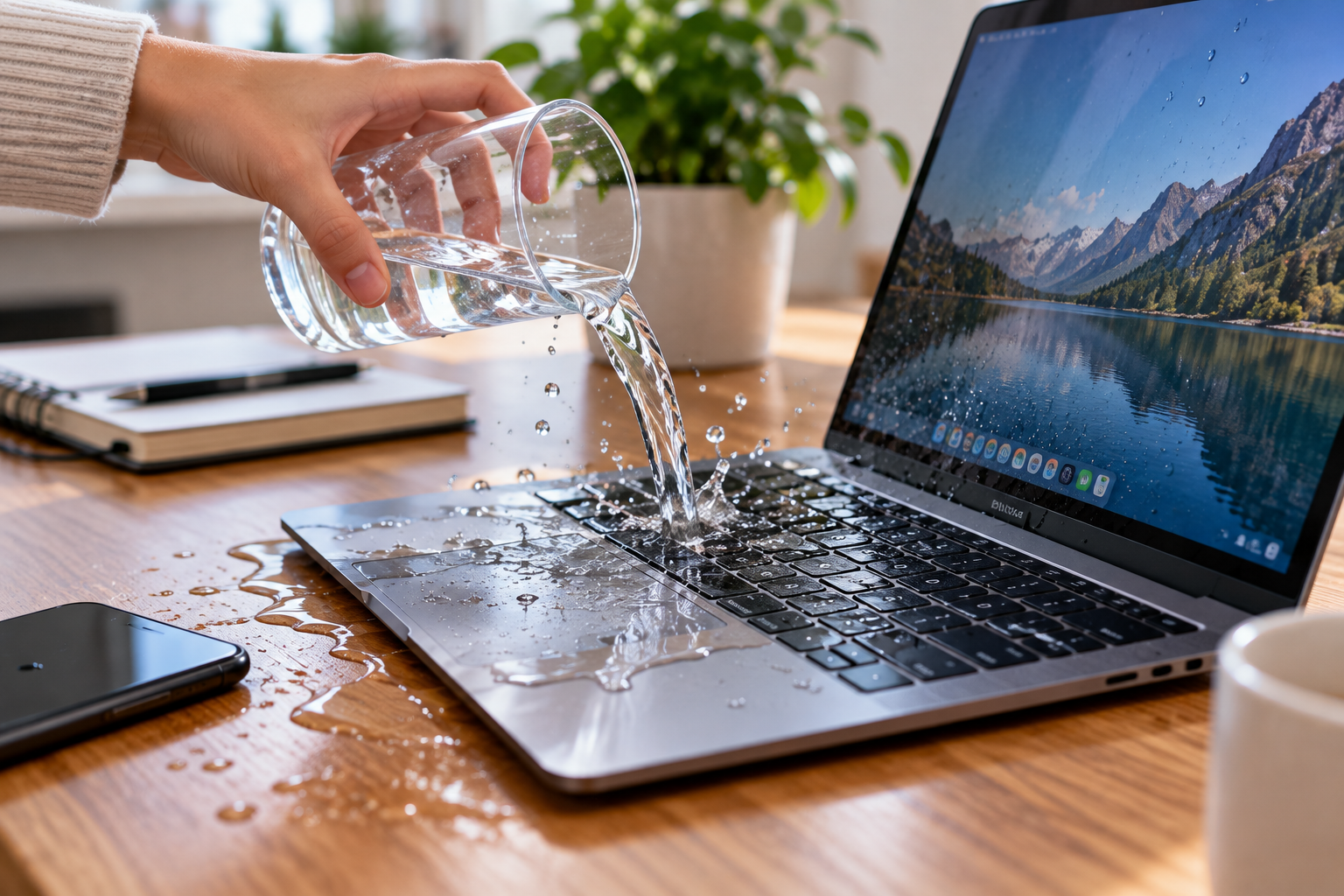
Water Spilled on a Laptop: What to Do Right Away
If you spill water on your laptop, turn it off immediately and unplug the charger and all connected devices. Remove the battery if it is designed to be easily removable, blot visible liquid and position the laptop so excess water can drain. Do not keep using it or turn it back on just to check whether it works, because powering wet electronics can cause additional damage.
Let the laptop dry thoroughly before attempting to start it again. If a significant amount of liquid entered the keyboard or the spill involved coffee, soda, juice or another residue-producing drink, professional inspection is the safer option.
What Should You Do If You Spill Water on Your Laptop?
Follow these steps in order:
- Turn the laptop off immediately.
- Unplug the charger.
- Disconnect USB devices and other accessories.
- Remove the battery if it is easily removable.
- Blot visible liquid without pressing it deeper into the keyboard.
- Position the laptop so excess liquid can drain.
- Leave it powered off while it dries thoroughly.
- Do not use a hair dryer or put it in rice.
- Consider professional service for a large or sugary spill.
- Back up important files as soon as the laptop safely works again.
The priority is removing electrical power. Do not spend extra time saving documents, closing applications or testing individual keys while liquid may still be inside.
Step 1: Turn the Laptop Off Immediately
If the laptop is running, shut it down immediately.
When necessary, holding the power button to force it off is preferable to leaving wet electronics powered while you navigate menus and close programs.
Water or another liquid can create electrical paths where they should not exist. With current still flowing, that can contribute to:
- short circuits;
- damaged connectors;
- motherboard or logic-board damage;
- corrosion.
Even if the screen and keyboard still appear to work normally, do not continue using the laptop after a spill.
Step 2: Disconnect the Charger and Accessories
Unplug the power adapter and disconnect external devices such as:
- docking stations;
- USB drives;
- external hard drives;
- mouse;
- headphones;
- SD cards where practical.
If water is around a wall outlet, charger or exposed electrical connection, prioritize your own safety. Do not reach into standing water or grab a wet electrical connection. Disconnect power safely before handling the equipment.
Step 3: Disconnect the Battery If It Is Safe
If your laptop has an ordinary removable battery, remove it after disconnecting the charger.
Modern laptops often have an internal battery that requires opening the case.
Do not assume that every user should immediately dismantle a laptop after a spill.
Only disconnect an internal battery yourself if the manufacturer’s service instructions support the procedure and you are comfortable performing it safely. Otherwise, leave the laptop off and arrange professional service.
Opening an unfamiliar device incorrectly can damage connectors, puncture the battery or create additional problems.
Step 4: Blot the Liquid — Don’t Push It Deeper
Use a clean absorbent or lint-free cloth to remove visible liquid from:
- keyboard;
- trackpad;
- palm rest;
- ports;
- exterior surfaces.
Paper towel can also be used carefully on exterior liquid.
Blot rather than scrub.
Do not repeatedly press wet keyboard keys, and do not aggressively shake the computer. Both actions can move liquid into areas that were not originally affected.
The goal is simple: remove as much surface liquid as possible without spreading it farther inside.
Step 5: Let Excess Water Drain Out
After removing surface liquid, position the laptop so remaining liquid can drain away from the interior.
Place an absorbent towel underneath it and use a stable position that allows gravity to help.
Avoid repeatedly flipping or rotating the computer in different directions. Moving it too much can carry water across additional components.
Laptop designs differ, so there is no perfect universal angle for every model. The main objective is to encourage liquid to move out, not deeper across the motherboard, battery or connectors.
How Long Should a Laptop Dry After a Water Spill?
Allow it to dry thoroughly for at least 24 hours, and potentially longer when a substantial amount of liquid entered the computer.
Twenty-four hours should not be treated as a guarantee.
Actual drying time depends on:
- how much liquid was spilled;
- where it entered;
- laptop construction;
- temperature and airflow;
- whether liquid reached internal components;
- what type of liquid was spilled.
A laptop can feel completely dry on the outside while moisture remains underneath the keyboard or around internal connectors.
If a large amount of water went through the keyboard, vents or ports, professional inspection is safer than guessing whether the interior is dry.
When Can You Turn the Laptop Back On?
Do not turn it back on:
- after 10 minutes;
- after an hour;
- immediately after wiping it;
- simply to see whether it survived.
Powering a device while moisture remains inside can turn a recoverable spill into electrical damage.
After the laptop has dried thoroughly, you can attempt to start it. If the spill was substantial, reached internal components or involved a contaminated drink, having the machine inspected before powering it again is the lower-risk approach.
If it does start normally, back up important files immediately.
What Not to Do After Spilling Water on a Laptop
Don’t Keep Using It
A laptop that still works immediately after a spill is not necessarily undamaged.
Remove power anyway.
Don’t Repeatedly Turn It On to Test It
Every power-on attempt while moisture may remain inside adds risk.
Don’t Use a Hair Dryer
Hot air can damage plastics, adhesives, the display and other components. Strong airflow may also move liquid farther into the computer.
Let the laptop dry naturally in a ventilated environment.
Don’t Put It on a Heater or in an Oven
High temperatures can damage:
- lithium-ion batteries;
- plastics;
- adhesives;
- display components;
- electronics.
Don’t Put the Laptop in Rice
Rice does not reliably remove moisture trapped underneath chips, connectors or keyboard layers.
It can also introduce dust and debris into:
- ports;
- ventilation openings;
- the keyboard.
Drying and, when necessary, internal cleaning are more useful than surrounding the computer with rice.
Don’t Spray Cleaner Into the Keyboard
Adding more liquid is not a solution to an existing liquid spill.
Cleaning internal residue is a different process and may require disassembly by someone experienced with electronics.
Is Water Better Than Coffee, Soda or Juice?
Plain water is generally less problematic than drinks that leave conductive, acidic or sticky residue, but it can still damage a laptop.
Even water can cause:
- short circuits while power is present;
- mineral residue;
- corrosion.
Coffee, soda, juice, wine and similar liquids may contain:
- sugar;
- acids;
- salts;
- milk;
- other dissolved material.
When the water portion evaporates, those substances can remain behind.
As a result, a laptop may initially start normally and later develop:
- sticky keys;
- intermittent keyboard problems;
- charging issues;
- corrosion;
- unstable electrical connections.
For a sugary or otherwise contaminated spill, simply waiting for the liquid to evaporate may not be enough. Internal cleaning may be needed.
What If You Spilled Water on the Laptop Keyboard?
The keyboard is a particularly vulnerable spill location because liquid can travel beyond the keycaps.
It may reach:
- keyboard membrane;
- ribbon cable;
- connectors;
- motherboard or logic board.
If liquid lands on the keyboard:
- Turn off the laptop.
- Disconnect external power.
- Remove visible liquid.
- Allow excess liquid to drain.
- Leave the computer off while it dries.
- Avoid repeatedly pressing the wet keys.
Do not automatically pull keycaps off a laptop keyboard. Many notebook key mechanisms are fragile and can easily be damaged during removal.
Laptop Keyboard Not Working After a Water Spill
If the laptop has dried but the keyboard now behaves abnormally, liquid damage is a more likely starting point than a software problem.
Possible symptoms include:
- individual keys not responding;
- keys producing the wrong characters;
- random key presses;
- several keys failing together;
- the entire keyboard stopping.
Possible causes include damage to the:
- keyboard membrane;
- keyboard connector;
- controller;
- motherboard;
- electrical contacts affected by corrosion.
Because the problem began directly after liquid exposure, reinstalling keyboard drivers or resetting operating-system settings should not be the first assumption.
Once the laptop is safely dry and functioning, an external USB or Bluetooth keyboard can provide temporary access to the computer. It does not repair the damaged internal keyboard.
Can a Laptop Work After a Water Spill and Fail Later?
Yes.
Liquid damage does not always appear immediately.
A laptop may initially seem normal and later develop:
- nonworking keys;
- random shutdowns;
- charging problems;
- USB failures;
- display problems;
- overheating;
- motherboard faults.
Corrosion can continue after the visible moisture has disappeared, particularly when the spill contained sugar, salts or other residue.
For that reason, a successful restart does not prove that no damage occurred.
When Should You Take a Water-Damaged Laptop for Repair?
Professional inspection is particularly advisable when:
- a large amount of liquid entered the laptop;
- the spill was coffee, soda, juice or another residue-producing drink;
- liquid went through the keyboard or vents;
- the laptop will not start after thorough drying;
- the keyboard or trackpad stopped working;
- charging no longer works reliably;
- the computer shuts down unexpectedly;
- the display behaves abnormally;
- you notice an electrical or burning smell;
- the laptop becomes unusually hot;
- the battery appears swollen;
- important data exists only on the affected computer.
Apple also advises obtaining service when a Mac has sustained liquid damage.
What If the Laptop Starts Smoking, Hissing or Getting Hot?
Stop using the laptop immediately if you notice:
- smoke;
- sparks;
- hissing;
- battery swelling;
- a strong chemical or burning smell;
- unusual heat.
These symptoms can indicate electrical or lithium-ion battery failure.
Do not continue holding, charging or repeatedly attempting to start the device. Move away from the immediate hazard when it is safe to do so, and seek appropriate emergency assistance if the device is burning.
Do not attempt a DIY repair on a visibly damaged or swollen lithium-ion battery.
What to Do After the Laptop Works Again
If the laptop successfully starts after drying, make a backup before assuming the problem is over.
Back Up Important Data
Prioritize:
- documents;
- photos;
- work files;
- important account or profile data.
Test the Main Functions
Check:
- keyboard;
- trackpad;
- charging;
- USB ports;
- audio;
- Wi-Fi;
- display.
Watch for Delayed Problems
Over the following days, pay attention to:
- keys becoming unreliable;
- crashes or shutdowns;
- unstable charging;
- ports failing;
- unusual heat.
Delayed symptoms can indicate corrosion or internal damage that was not obvious immediately after the spill.
The most important thing after spilling water on a laptop is to remove power quickly and resist the urge to keep testing the computer while moisture may still be inside. Let it dry thoroughly, and treat coffee, soda and other residue-producing liquids more seriously than a small clean-water spill. If the laptop starts working again, back up important data immediately and watch for keyboard, charging or stability problems that could indicate delayed liquid damage.